
If you're using Proton Mail, you should allowlist CanIPhish inside Proton Mail to ensure all CanIPhish simulated phishing emails and training notifications land in their intended recipients inbox. Please follow the steps outlined below to implement this allowlist.
- Log in to your administrator Proton Mail account at mail.proton.me(new window).
- Select Settings → All settings → Organization → Organization filters → Spam, block, and allow lists.
- Click the dropdown on the Add address or domain button, and select Allow.
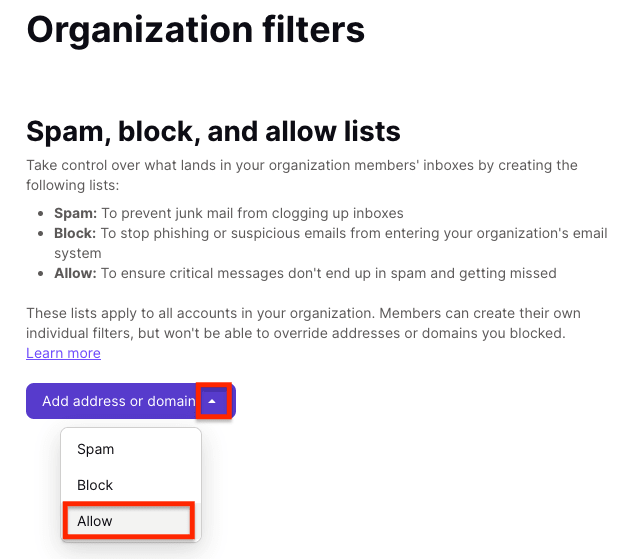
Choose Domain as the address type, and then enter each of our simulated phishing domains outlined below, clicking Add address after inputting each.
alerting-services.com
authwebmail.com
cloud-notification-services.com
securesupportcloud.com
office-365-notifications.com
webnotifications.net
paypaypal.net
cmail31.com
authenticationsecure.com
verificationweb.net
onlineverify.net
portal-login.net
email-forwarder.net
caniphish.com
learn.caniphish.com
You're all done! If you run into any issues, please contact the CanIPhish Support Team.
Comments
0 comments
Please sign in to leave a comment.